


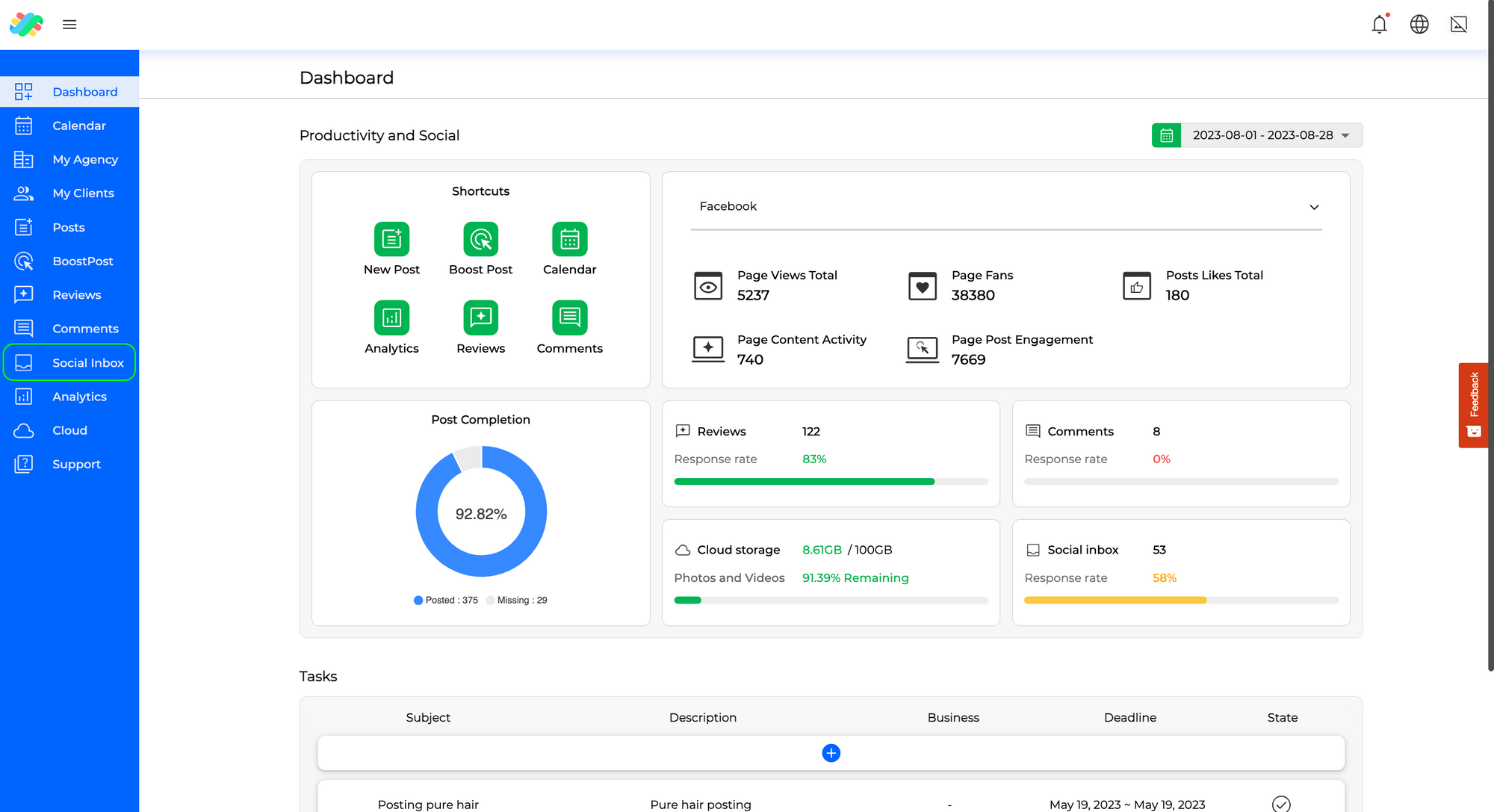
 Step 2: Choose Business and Unanswered Messages
Select the business you wish to manage messages for. Any unread or unanswered messages will be prominently
displayed, ensuring you don’t overlook any important interactions.
Step 2: Choose Business and Unanswered Messages
Select the business you wish to manage messages for. Any unread or unanswered messages will be prominently
displayed, ensuring you don’t overlook any important interactions.
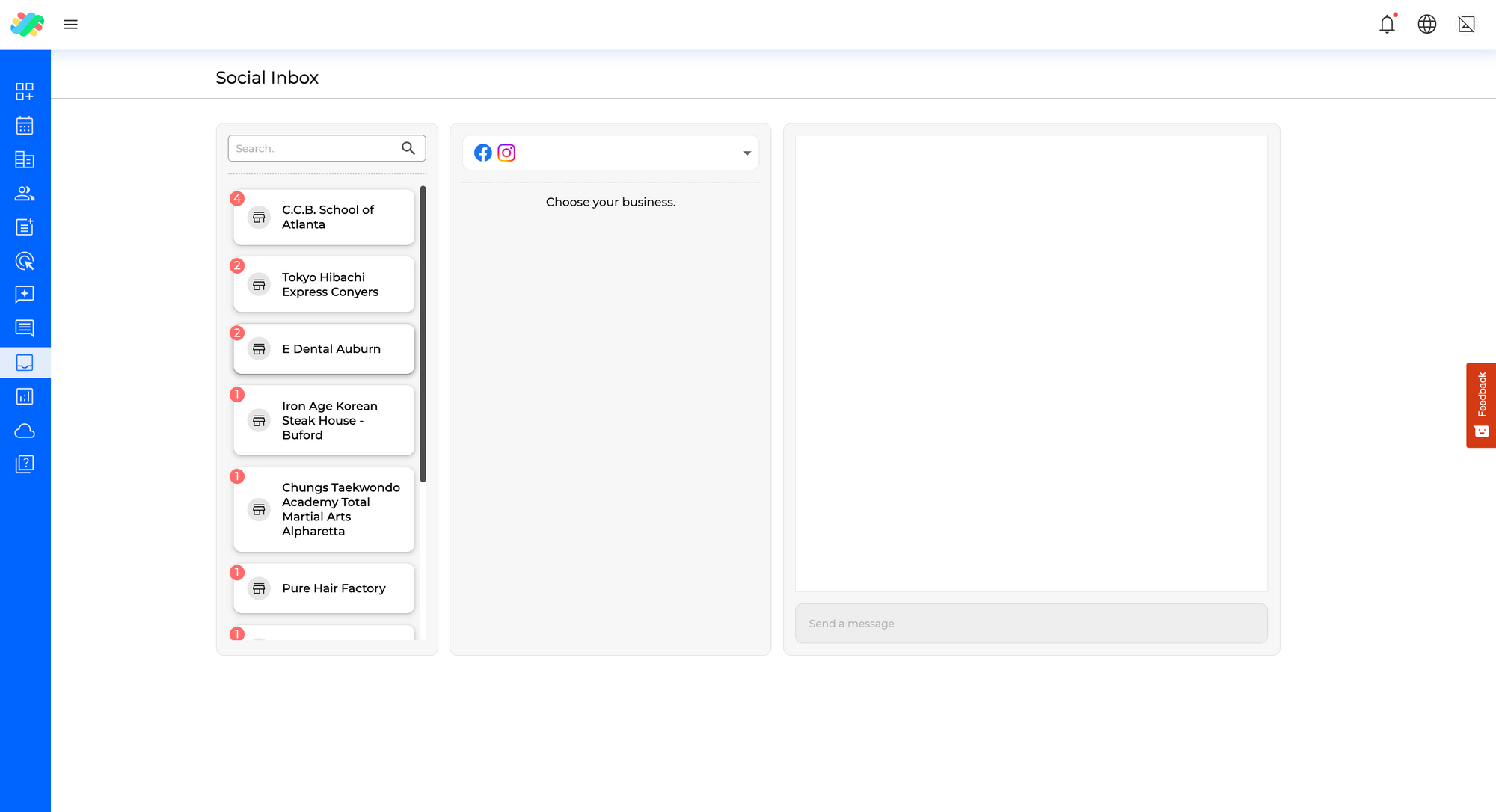 Step 3: Explore Message List
In the message list, you’ll find a comprehensive collection of messages related to the selected business. New or
unread messages will be highlighted for your convenience. You can use filters to sort messages based on their
source network or message status.
Step 3: Explore Message List
In the message list, you’ll find a comprehensive collection of messages related to the selected business. New or
unread messages will be highlighted for your convenience. You can use filters to sort messages based on their
source network or message status.
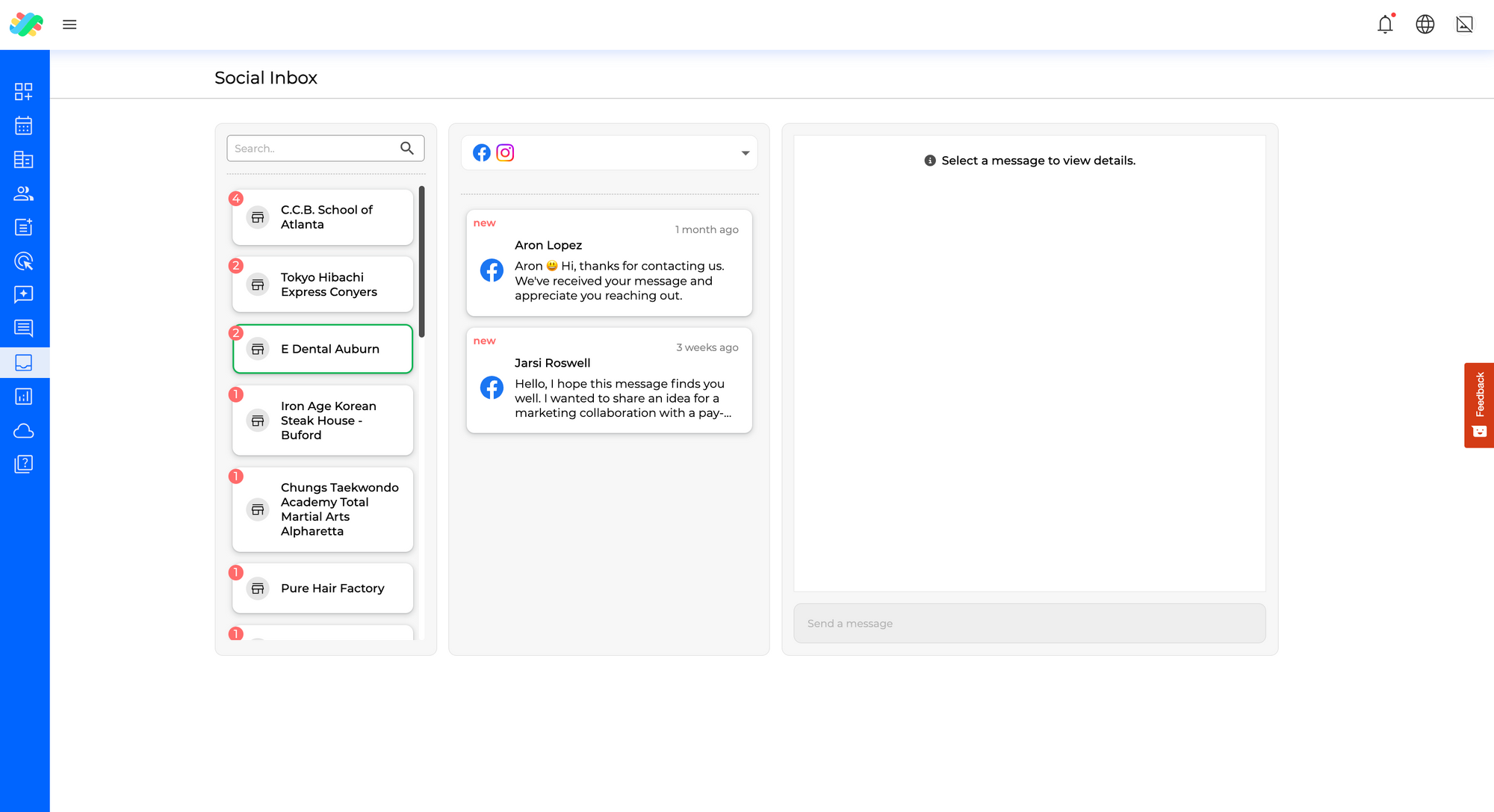 Step 4: Respond to Messages
Choose a message that you’d like to respond to. On the right-hand side, you’ll see the conversation associated
with the selected message. You can respond to individual messages by clicking on the appropriate reply
link.
Step 4: Respond to Messages
Choose a message that you’d like to respond to. On the right-hand side, you’ll see the conversation associated
with the selected message. You can respond to individual messages by clicking on the appropriate reply
link.
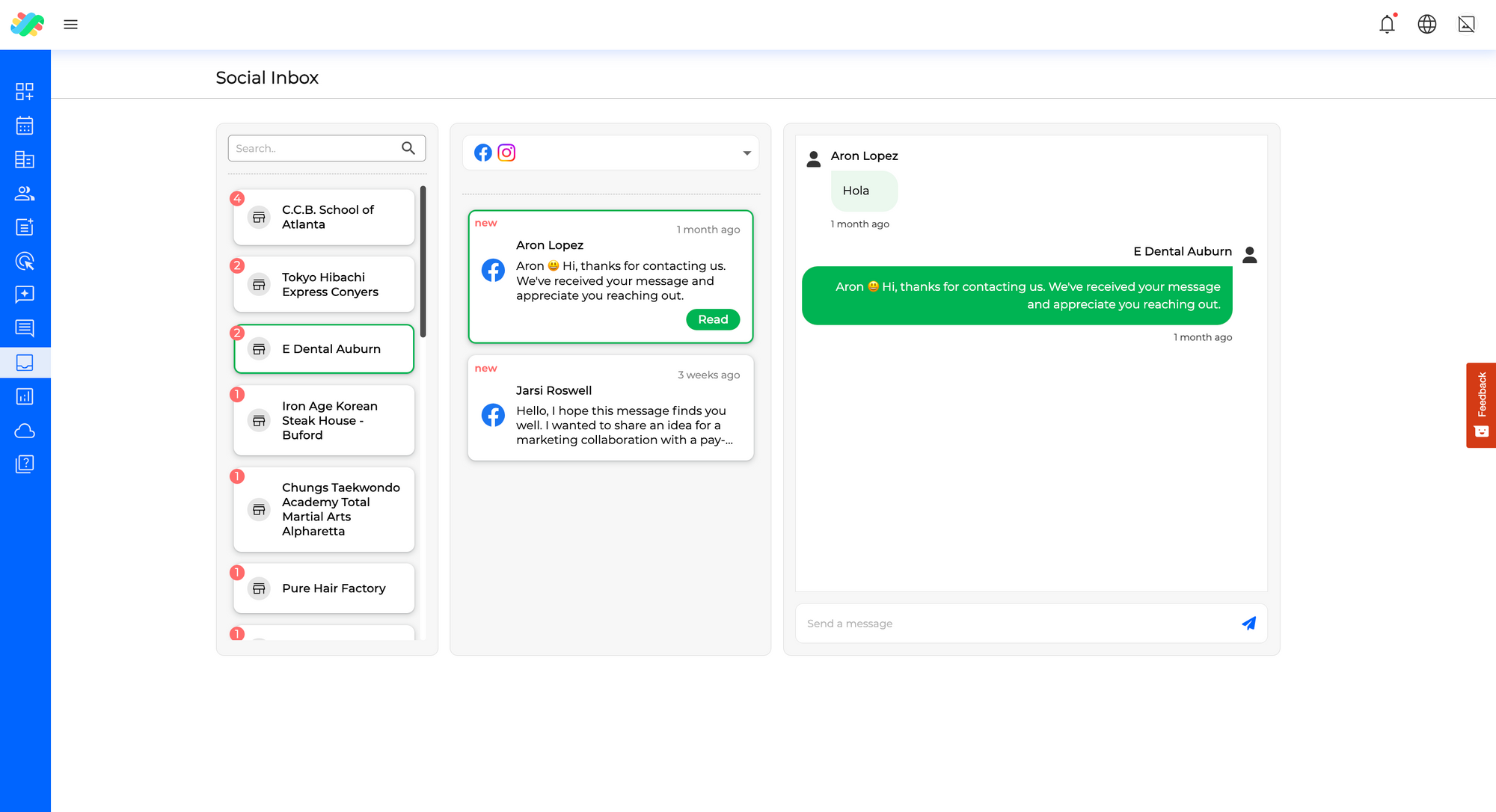 Step 5: Craft and Send Response
Type out your response in the provided field and hit the send icon. Your message will be sent to the customer,
enabling you to maintain effective communication.
Step 6: Manage Multiple Messages
Repeat this process for each message you want to address. Remember, once you’ve opened a message, the
notification will disappear. Open messages only when you’re ready to respond.
Step 7: Switch Between Businesses
You can easily switch between different businesses by clicking on the business card or using the search bar to
find the desired business.
Step 8: Ensure Social Network Connections
Before using this section, ensure that your social networks are connected. This is essential for collecting and
sending the required information, allowing you to enjoy the convenience of having all your messages in one
unified location.
If you have any further inquiries or need assistance, feel free to explore our supplementary guides or reach out
to us through the support section within LikeIt.
By following these steps, you’ll be well-equipped to efficiently manage and respond to messages across different
social platforms, fostering meaningful connections with your audience.
Step 5: Craft and Send Response
Type out your response in the provided field and hit the send icon. Your message will be sent to the customer,
enabling you to maintain effective communication.
Step 6: Manage Multiple Messages
Repeat this process for each message you want to address. Remember, once you’ve opened a message, the
notification will disappear. Open messages only when you’re ready to respond.
Step 7: Switch Between Businesses
You can easily switch between different businesses by clicking on the business card or using the search bar to
find the desired business.
Step 8: Ensure Social Network Connections
Before using this section, ensure that your social networks are connected. This is essential for collecting and
sending the required information, allowing you to enjoy the convenience of having all your messages in one
unified location.
If you have any further inquiries or need assistance, feel free to explore our supplementary guides or reach out
to us through the support section within LikeIt.
By following these steps, you’ll be well-equipped to efficiently manage and respond to messages across different
social platforms, fostering meaningful connections with your audience. 


About Cookies
This website uses Cookies on this website are used to personalize content and ads, provide social media features and analyze traffic. In addition, we share information about your use of the website with our social media, advertising and web analytics partners, who may combine it with other information you have provided to them or that they have collected from your use of their services.
Read Cookie PolicyNecessary cookies help make a website usable by enabling basic functions like page navigation and access to secure areas of the website. The website cannot function properly without these cookies.
Preference cookies enable a website to remember information that changes the way the website behaves or looks, like your preferred language or the region that you are in.
Statistic cookies help website owners to understand how visitors interact with websites by collecting and reporting information anonymously.
Marketing cookies are used to track visitors across websites. The intention is to display ads that are relevant and engaging for the individual user and thereby more valuable for publishers and third-party advertisers.
Unclassified cookies are cookies that we are in the process of classifying, together with the providers of individual cookies.